
Beyond the Desktop GUI: Headless Remote Control in Antigravity CLI 1.2.0
Antigravity CLI 1.2.0 natively integrates a headless background daemon, enabling browser-based remote control of your dev machine without running the desktop GUI.
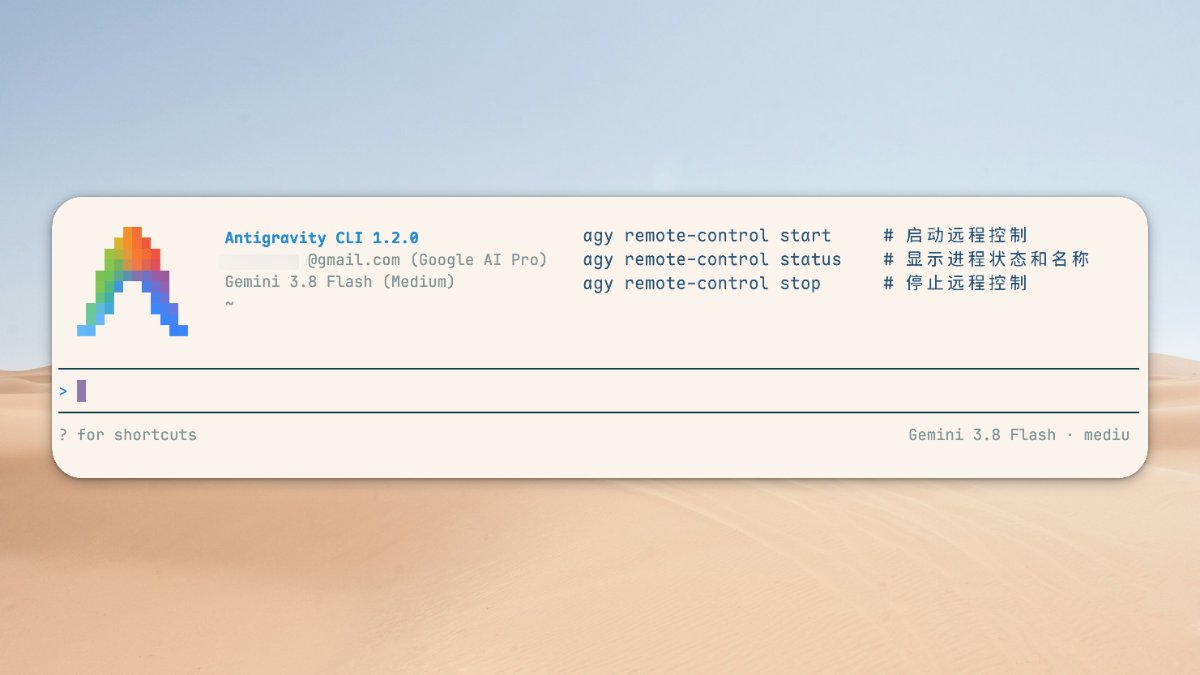
When executing large-scale refactorings, comprehensive test suites, or multi-repo migrations, AI agents frequently run for dozens of minutes or hours. In the past, if you wanted to step away and monitor progress from a phone or browser, you had to keep the full Antigravity 2.0 desktop editor running with Remote Control enabled.
With the release of Antigravity CLI 1.2.0, Google has baked this capability directly into the terminal runtime: Headless Remote Control (Daemon). You no longer need to keep a heavy desktop UI running or leave a terminal session active. Your local dev workstation can now operate as an always-available headless daemon, ready for orchestration from any web browser on any device.
What Is "Headless Remote Control"?
"Headless" means running without a graphical interface. Previously, closing your terminal window or dropping an SSH connection would terminate the active CLI session.
The 1.2.0 daemon registers Antigravity CLI directly into your operating system's native background service manager:
- Linux: Managed via
systemduser services. - macOS: Registered as a
LaunchAgent. - Windows: Registered as a Scheduled Task.
Once launched, the service establishes a secure reverse connection to Antigravity's cloud relay. Even if you close the terminal, lock your screen, or recover from unexpected crashes, the daemon resumes automatically.
Three Essential Commands for Lifecycle Management
You don't need to handcraft systemd units or macOS plists. The CLI provides three concise subcommands:
1. Register and Start Daemon: agy remote-control start
Run in an authenticated terminal session:
agy remote-control start
The CLI installs the system service and starts the background process immediately.
If you manage multiple workstations under the same Google account, assign a custom name to distinguish machines in the web UI:
agy remote-control start --name "workstation-mac"
(If omitted, Antigravity assigns an auto-generated memorable handle like my-machine-distant-plume.)
2. Check Status and Identity: agy remote-control status
Inspect daemon health, connection state, and assigned machine identifiers:
agy remote-control status
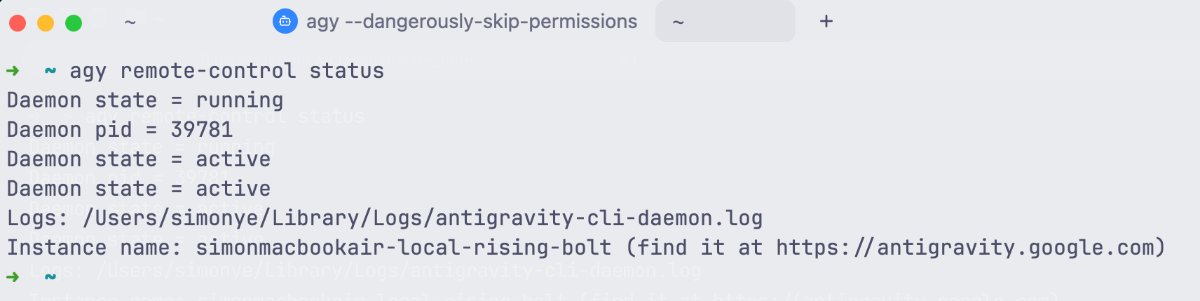
3. Stop and Unregister: agy remote-control stop
When you no longer need the machine on standby, stop the daemon and cleanly deregister it:
agy remote-control stop
Connecting via Web Browser
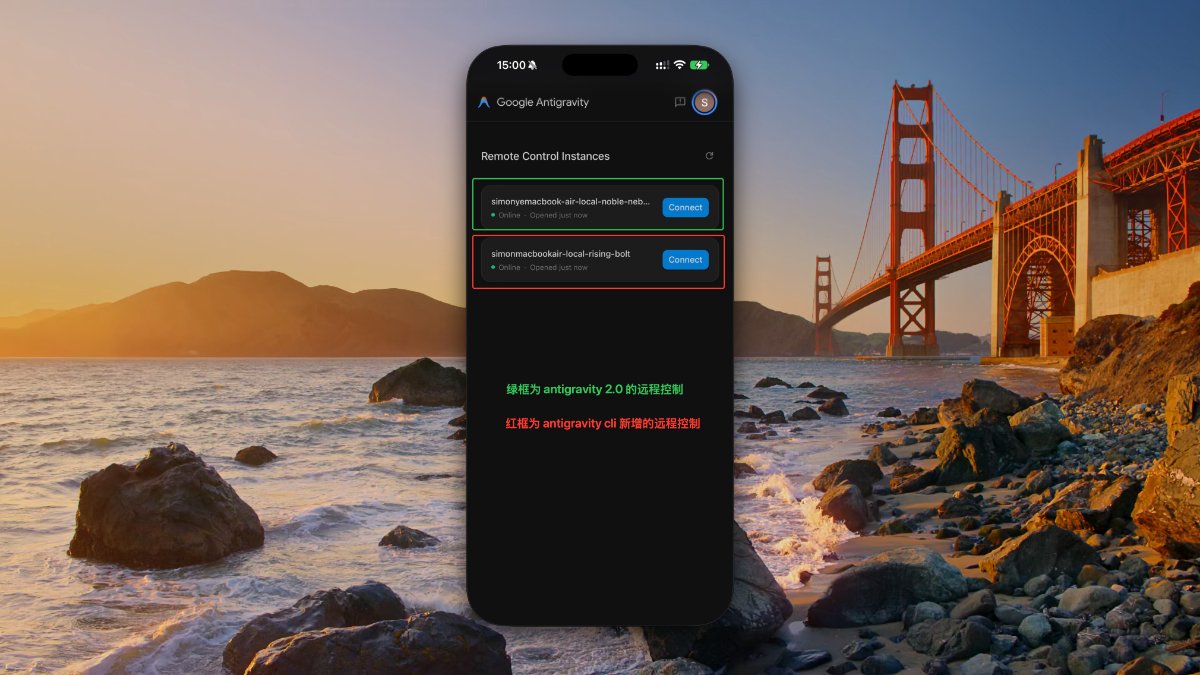
Once the daemon is active, interacting with it follows the familiar Remote Control experience:
- Open the Console: Navigate to https://antigravity.google.com/ on mobile, tablet, or another computer.
- Authenticate: Log in with the same Google account used in your CLI.
- Select Your Host: Choose your workstation from the instance roster.
- Take Command: Launch new sessions, review active context, inspect code diffs and artifacts, and approve tool authorizations remotely with a single tap.
(Tip: On mobile devices, add the site to your Home Screen to receive native push notifications when background tasks complete or require input).
Key Technical Nuances
- Independent Auth Profiles: The headless daemon utilizes the CLI's authentication state (
agy login), completely separated from the desktop Antigravity IDE app session. - Operating System Lifecycle Guarantees:
- Linux: Starts on boot and persists regardless of active interactive user sessions.
- macOS: Boots when the user logs into the desktop environment and pauses upon sign-out.
- Windows: Runs without logon if installed with elevated administrator privileges; otherwise starts upon user logon.
- Renaming Instances: To change your host alias, re-run
agy remote-control start --name "new-name", or updatecliRemoteControlHostnamein~/.gemini/config/config.jsonand restart the daemon.
With CLI 1.2.0, your physical hardware transforms into a private, on-demand AI compute node—retaining the speed and toolchain depth of your local environment while freeing you from your physical desk.