
Fixing Frequent Chrome DevTools MCP Permission Prompts in Google Antigravity
A practical guide to configuring server-level permissions in Google Antigravity to eliminate repetitive Chrome DevTools MCP authorization dialogs.
When using Google Antigravity (or the Gemini agent environment) for frontend debugging and web automation, many developers configure and enable the Chrome DevTools MCP plugin.
In practice, however, you may encounter an annoying loop: even after selecting "Yes, and always allow" every time a dialog appears, new permission prompts continue to pop up every couple of steps.
This post explains the underlying cause and the one-line configuration that permanently resolves it.
Problem Description
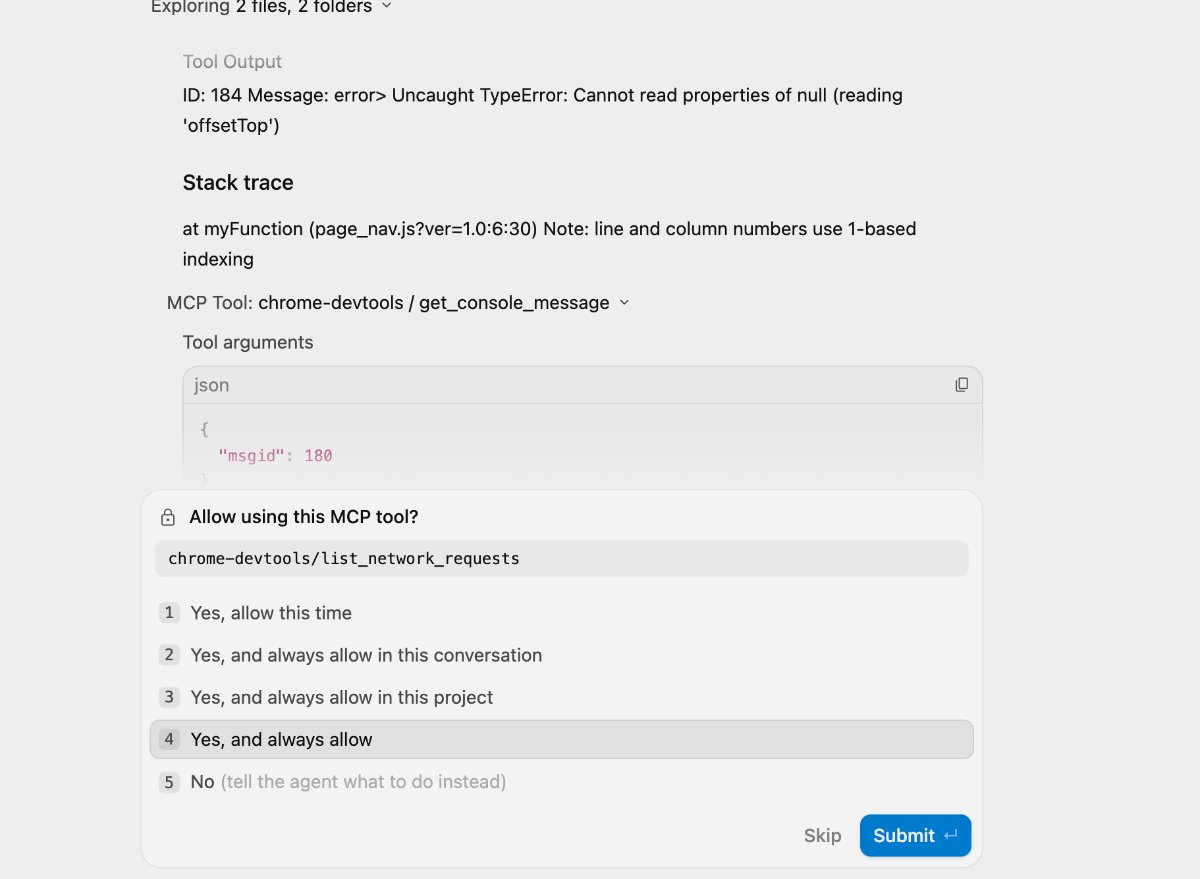
While an agent executes web workflows, confirmation prompts frequently interrupt execution:
Allow using this MCP tool?
chrome-devtools/list_network_requests

1. Yes, allow this time
2. Yes, and always allow in this conversation
3. Yes, and always allow in this project
4. Yes, and always allow
5. No (tell the agent what to do instead)
Even if you choose 4 (globally allow forever), another dialog appears the moment the agent attempts to inspect console logs, take a screenshot, or click a button.
Why Does It Still Prompt After Choosing "Always Allow"?
The issue lies in permission granularity.
When you choose 4. Yes, and always allow, Antigravity adds only the specific invoked sub-tool to your allowlist:
mcp(chrome-devtools/list_network_requests)mcp(chrome-devtools/evaluate_script)
However, the Chrome DevTools MCP suite exposes more than 20 distinct tools (click, fill, hover, navigate_page, take_snapshot, get_console_message, lighthouse_audit, etc.). During a multi-step workflow, an agent dynamically invokes different sub-tools as needed. Whenever it calls a tool that hasn't been individually whitelisted yet, the confirmation dialog triggers anew.
Solution: Authorize the Entire MCP Server
The fix is straightforward: grant permission at the MCP server level rather than the individual sub-tool level.
Steps
- Open your global configuration file:
- Path:
~/.gemini/config/config.json
- Path:
- Locate the
userSettings.globalPermissionGrants.allowarray. - Add
"mcp(chrome-devtools)"to the array.
Example configuration:
{
  "userSettings": {
    "globalPermissionGrants": {
      "allow": [
        "mcp(chrome-devtools)",
        "command(git log)",
        "command(npm run)"
      ]
    }
  }
}
Comparison
| Permission Format | Scope | Use Case |
|---|---|---|
mcp(chrome-devtools/navigate_page) | Single sub-tool only | Strict boundaries (e.g., read-only inspection tools) |
mcp(chrome-devtools) | All tools under this MCP server | Fully trusted server, zero interruptions across sub-tools |
Additional Tips
- Universal across MCP servers: If you integrate other custom or third-party MCP servers (like local shell runners or SSH managers), you can apply the same
mcp(<server-name>)wildcard pattern to bypass prompts entirely. - Project-scoped overrides: If you prefer not to whitelist it globally, configure
permissionGrantsin the project-specific config file (~/.gemini/config/projects/<project-id>.json) so it only applies within that repository.
Changes take effect immediately without restarting Antigravity. Subsequent agent calls to any Chrome DevTools tool will execute smoothly without interruptions.